ĐỆ TRÌNH VÀ QUẢN LÝ DỰ ÁN
- I. Thao tác Người đệ trình
- SUBMIT REQUEST TO DEVELOPER (Only for KKAA)
- SUBMIT REQUEST TO ARTELIA
- BRANDING SUBMIT REQUEST TO BOD
I. Thao tác Người đệ trình
A.LINK MÔ TẢ FOLDER DỰ ÁN
https://docs.google.com/spreadsheets/d/16Qv3FgS0Bml4TOU3wmQNrv1YZm1Cb_dABwsnWz7_vJ4/edit?usp=sharing
B.LINK CÀI ĐẶT APP HAUS:
https://haus.onelink.me/xlPy/haus
I. Tạo công việc cho Phòng ban
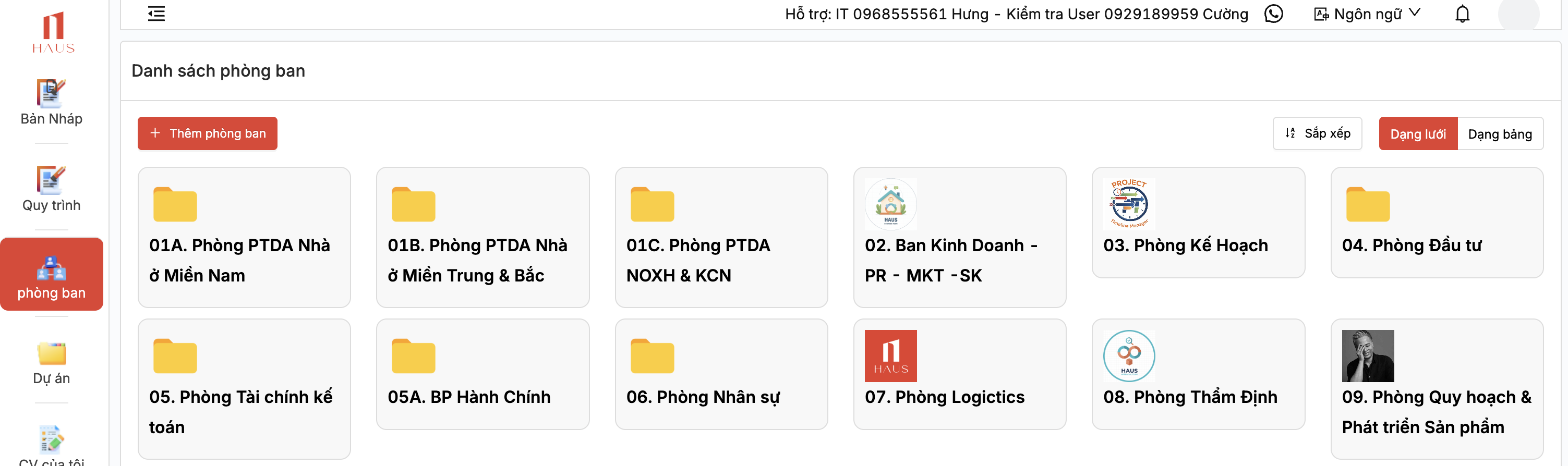
Click chuột phải vào phòng ban để mở giao diện công việc
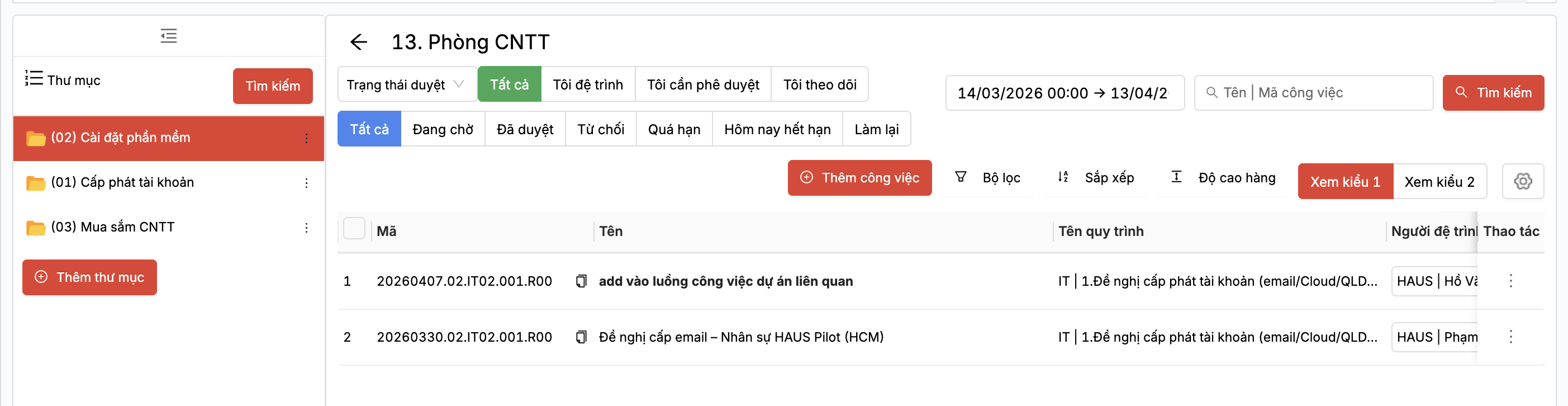
2. Công việc
- Khởi tạo công việc
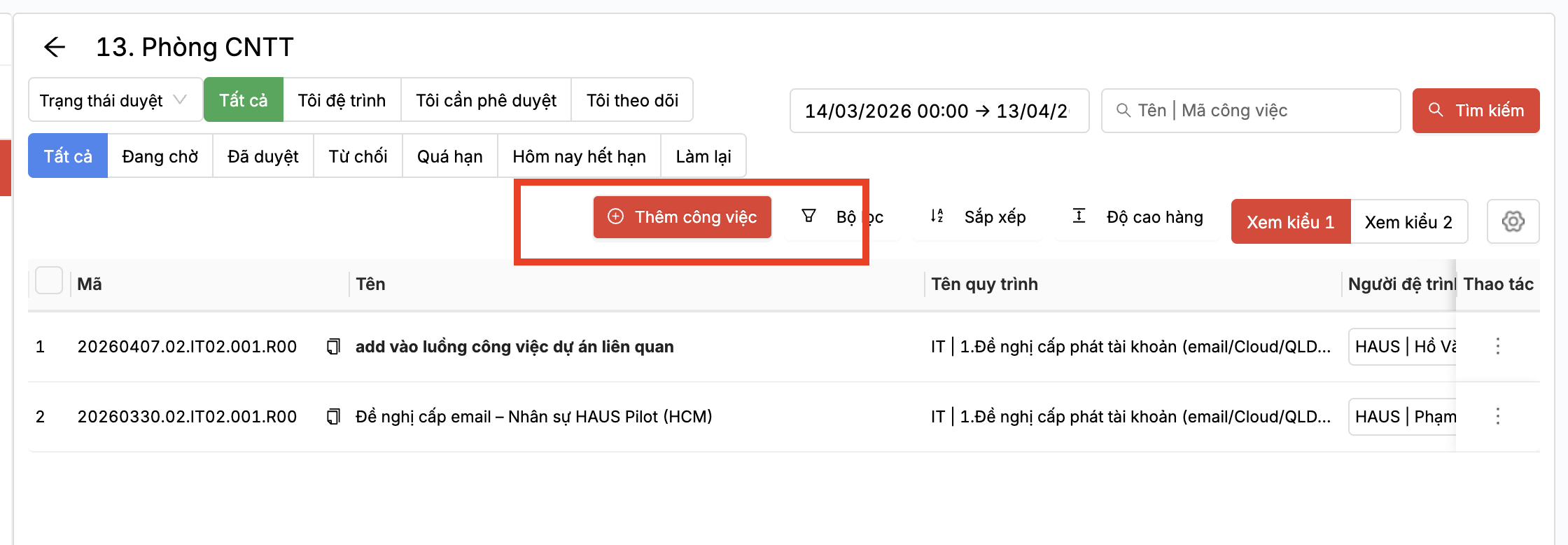
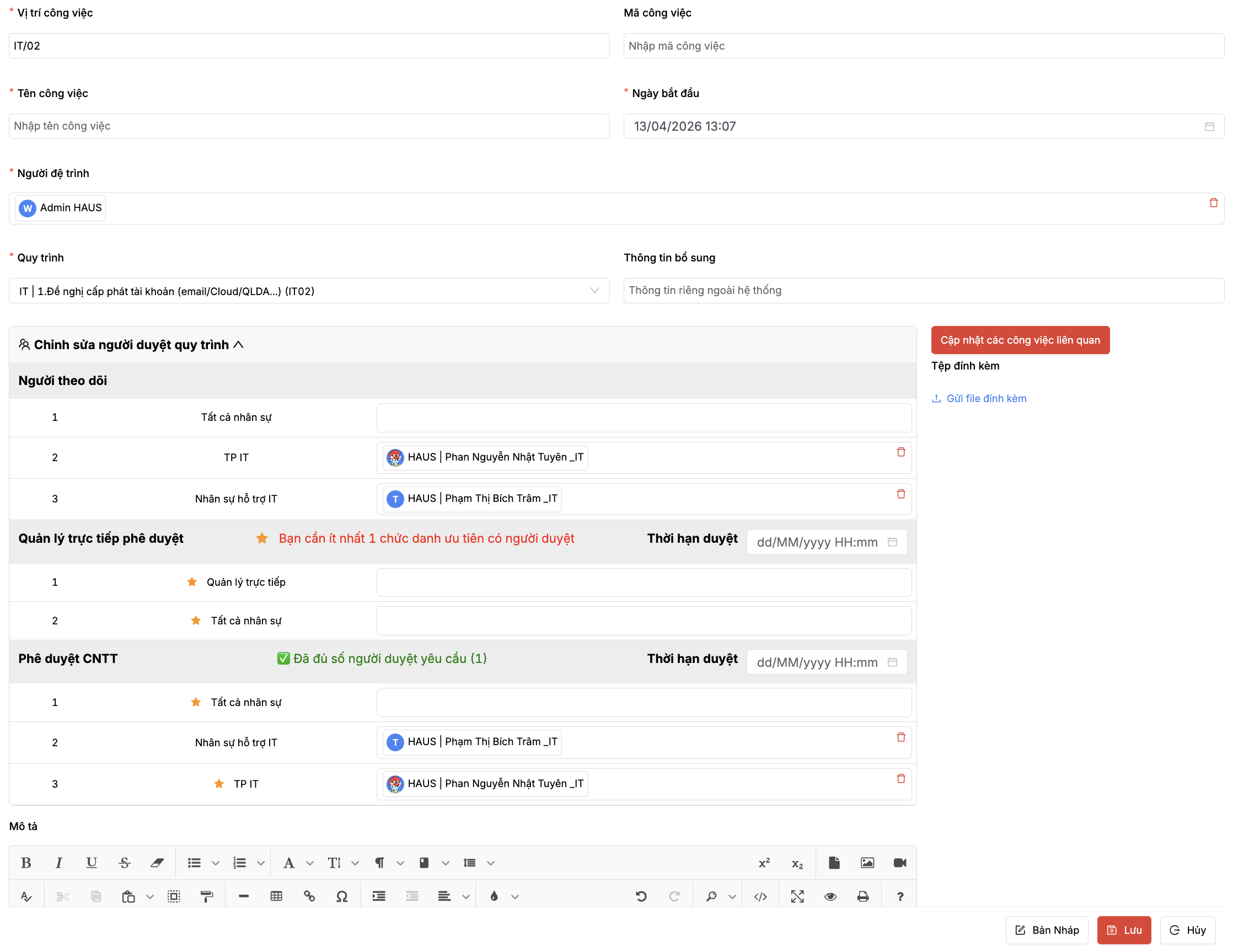
- Vị trí công việc: cú pháp [Mã phòng ban].[Mã thư mục]: Hệ thống tự động gợi ý, người dùng có thể nhớ đc cú pháp để tạo công việc tới vị trí tùy ý.
- Quy trình, Người phụ phụ trách, Người theo dõi, các Lần duyệt: Hệ thống tự động lấy theo cấu hình quy trình đã được thiết lập khi khởi tạo phòng ban.
Người dùng có thể tùy chỉnh lại thông tin người duyệt và thời gian duyệt. Nếu muốn thêm nhân viên cho các chức danh, cần quay lại thông tin phòng ban để chọn bổ sung nhân sự tương ứng.
- Tạo công việc con
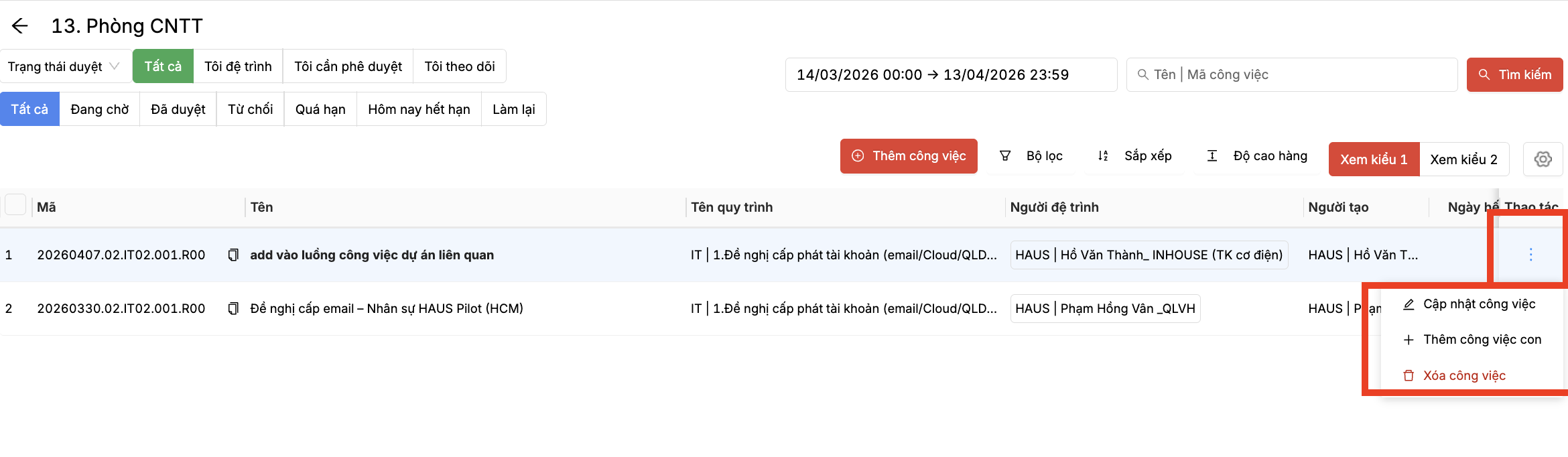
Hiện tại công việc chỉ có 2 cấp
II. Tạo công việc cho Dự án
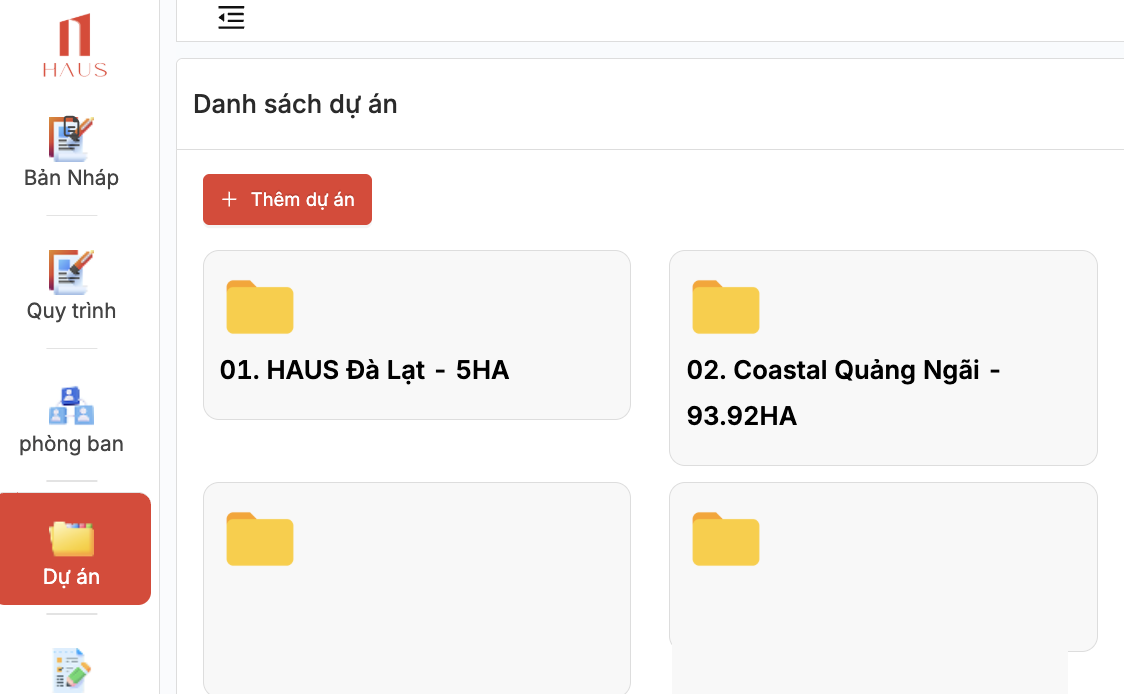
Cick chuột vào phòng ban Dự án để mở giao diện công việc
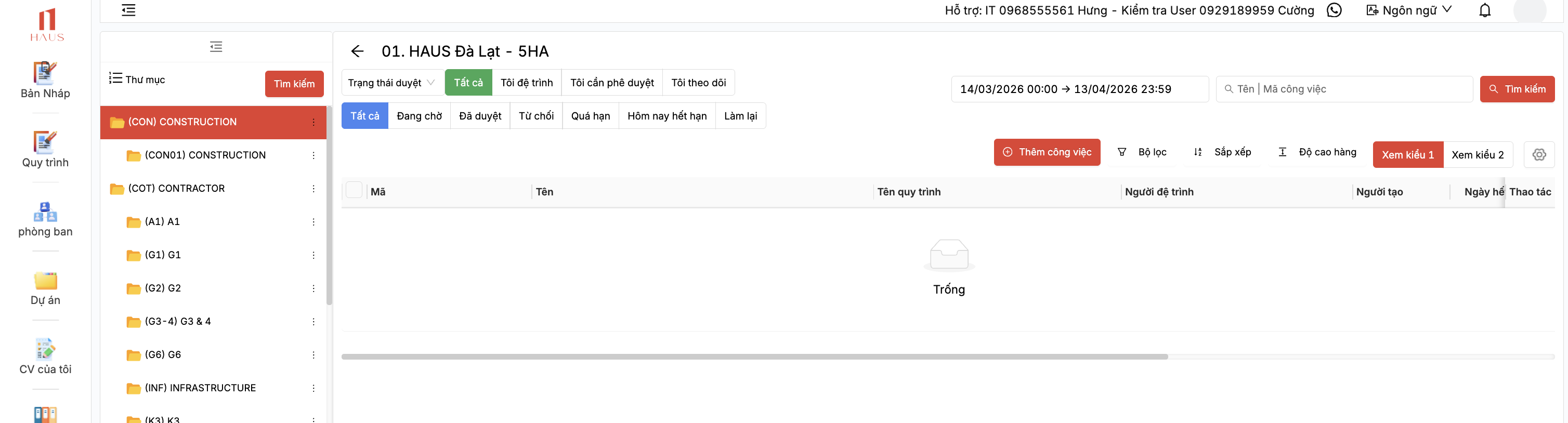
2. Công việc
- Khởi tạo công việc
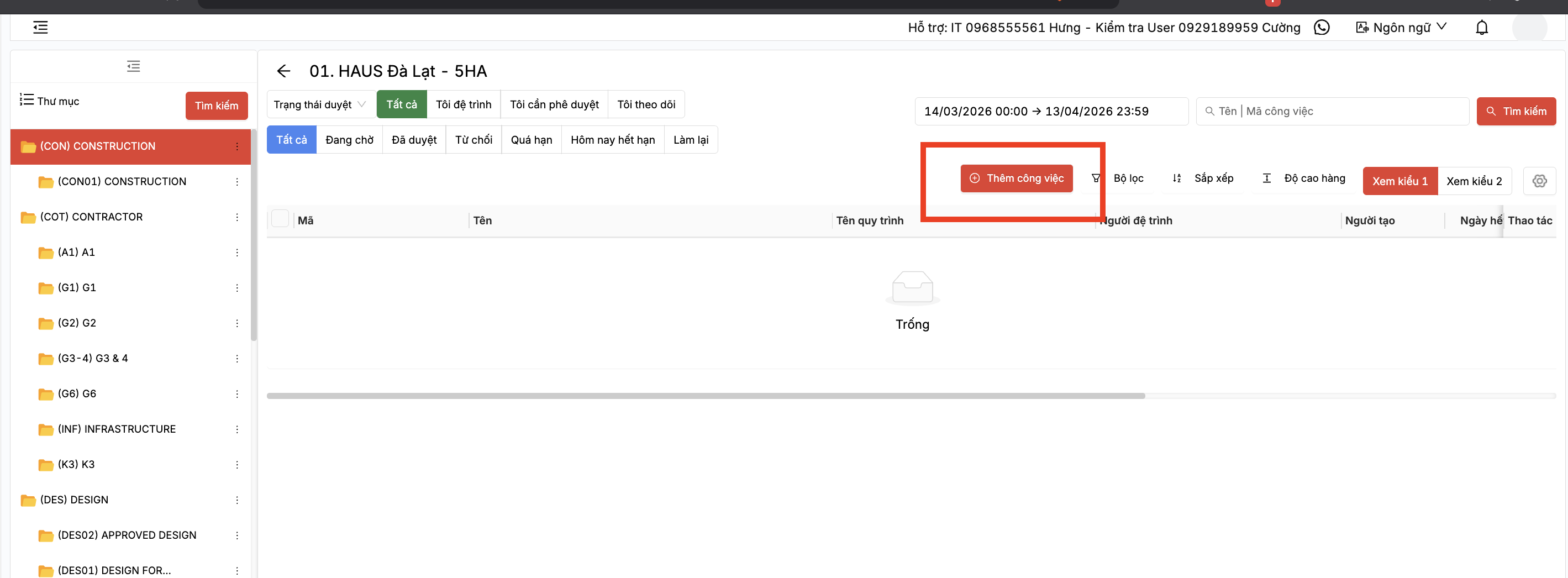

- Vị trí công việc: cú pháp [Mã dự án].[Mã thư mục]: Hệ thống tự động gợi ý, người dùng có thể nhớ đc cú pháp để tạo công việc tới vị trí tùy ý.
- Quy trình, Người phụ phụ trách, Người theo dõi, các Lần duyệt: Hệ thống tự động lấy theo cấu hình quy trình đã được thiết lập khi khởi tạo phòng ban.
Người dùng có thể tùy chỉnh lại thông tin người duyệt và thời gian duyệt. Nếu muốn thêm nhân viên cho các chức danh, cần quay lại thông tin phòng ban để chọn bổ sung nhân sự tương ứng.
- Tạo công việc con

SUBMIT REQUEST TO DEVELOPER (Only for KKAA)
Open web link https://qlda.hausvietnam.com/login

1. Login with username (email )
2. Password provide by IT
3. Change your language after login
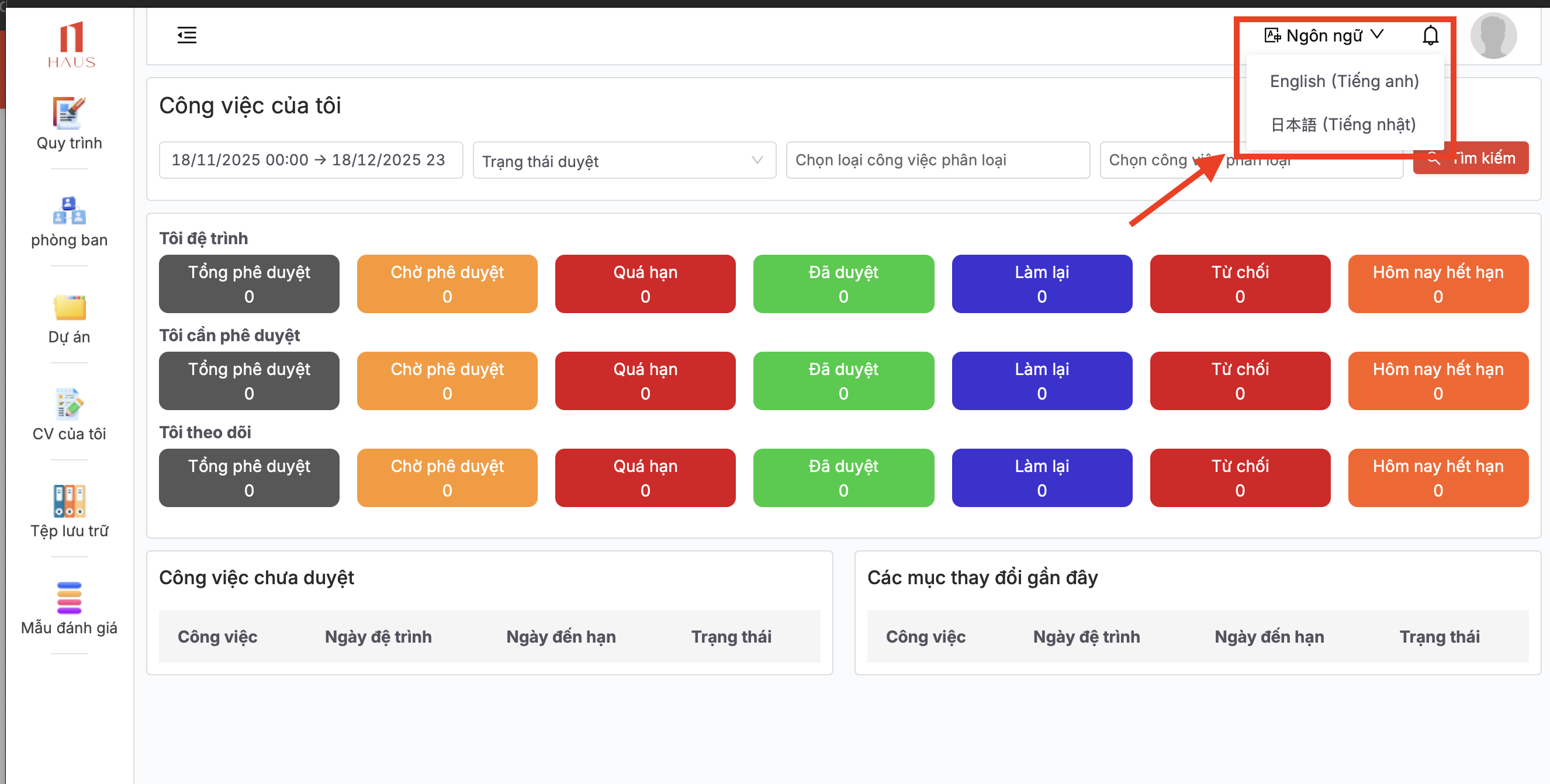
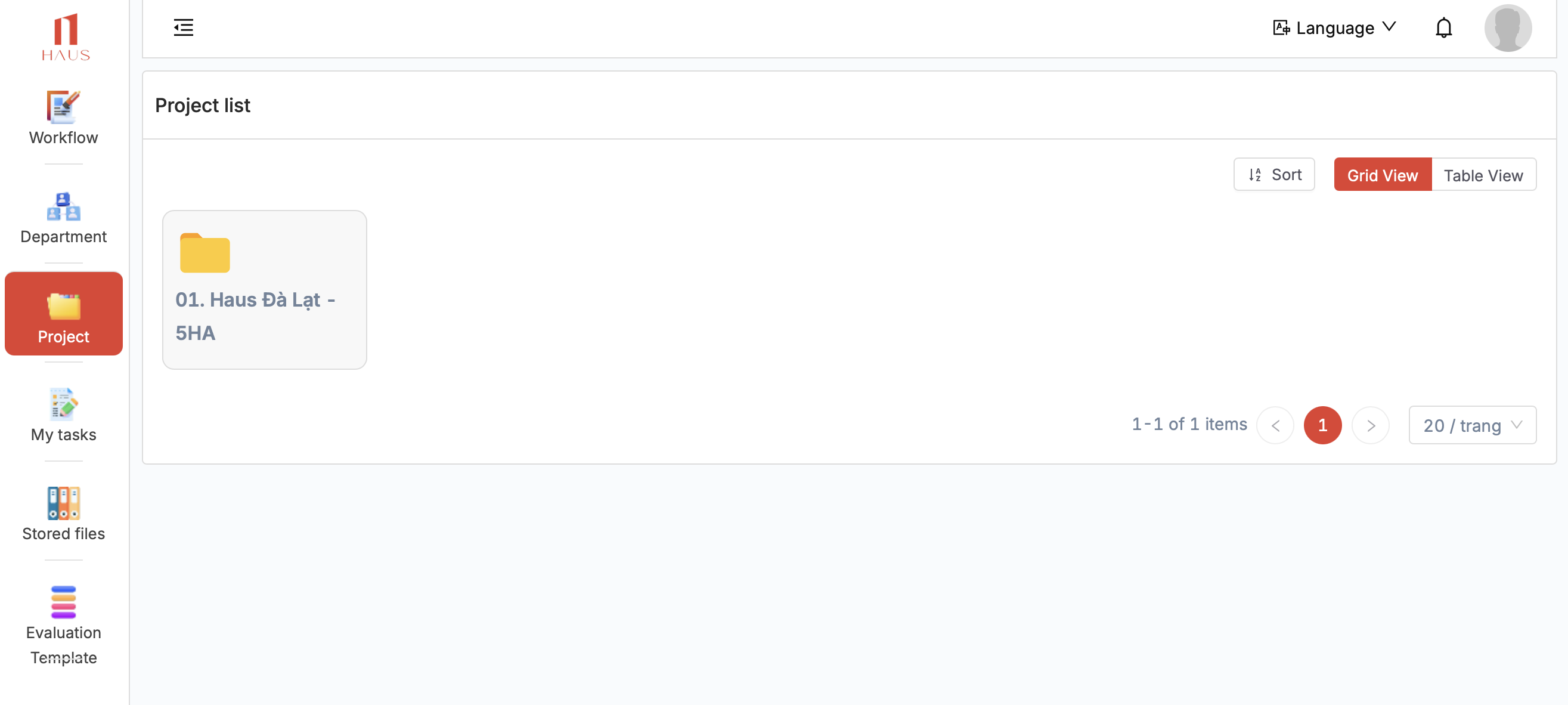
3. Click Project > HAUS DA LAT or open quick link https://qlda.hausvietnam.com/cong-viec/cong-viec-du-an/LAD.DL.HAUSDALAT-5HA?id=e0f474b6-c1c4-43e8-a24a-067414fa3ee8
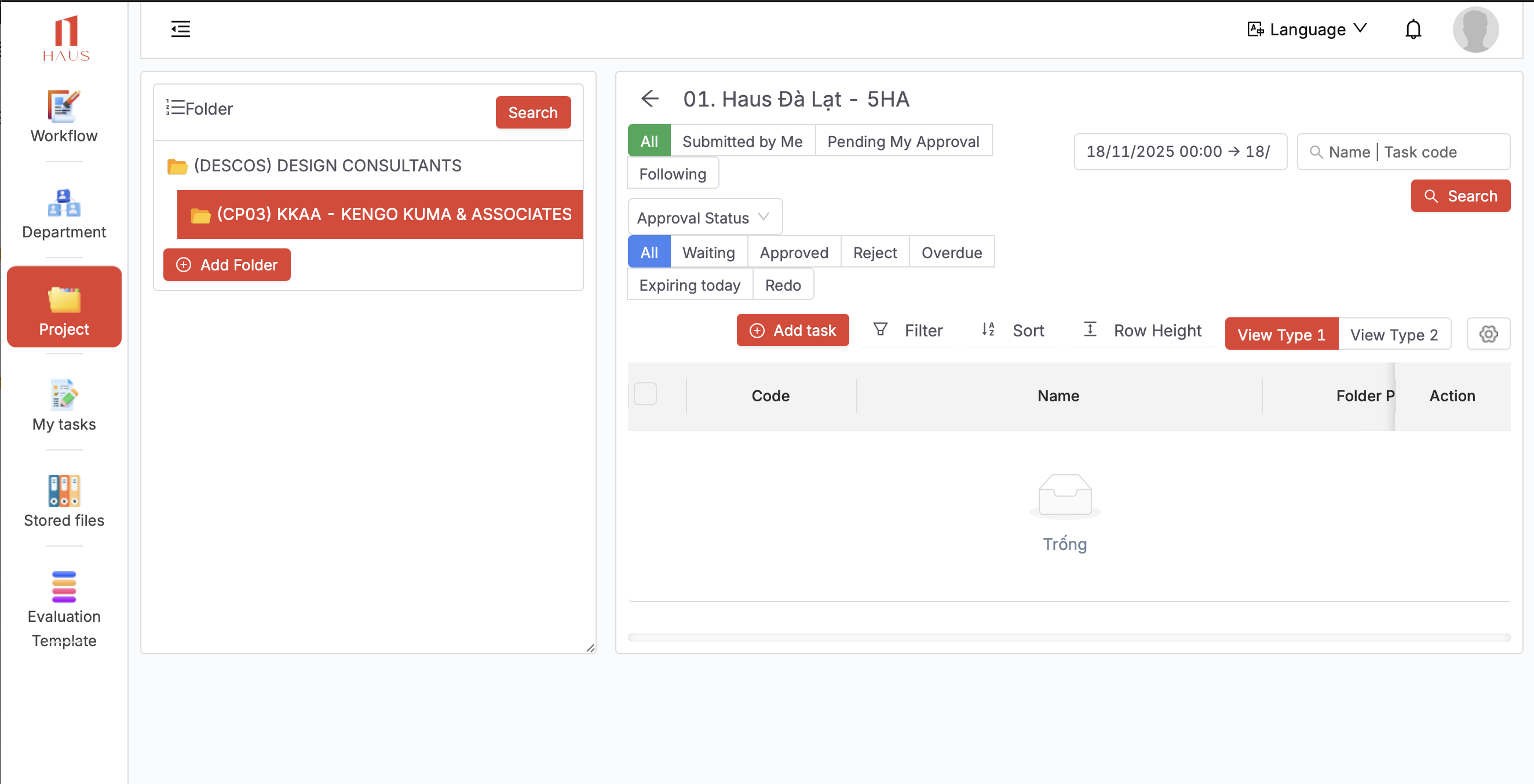
5. Select Folder (CP03) KKAA - KENGO KUMA & ASSOCIATES
-------------------
Create a new Request (TASK)
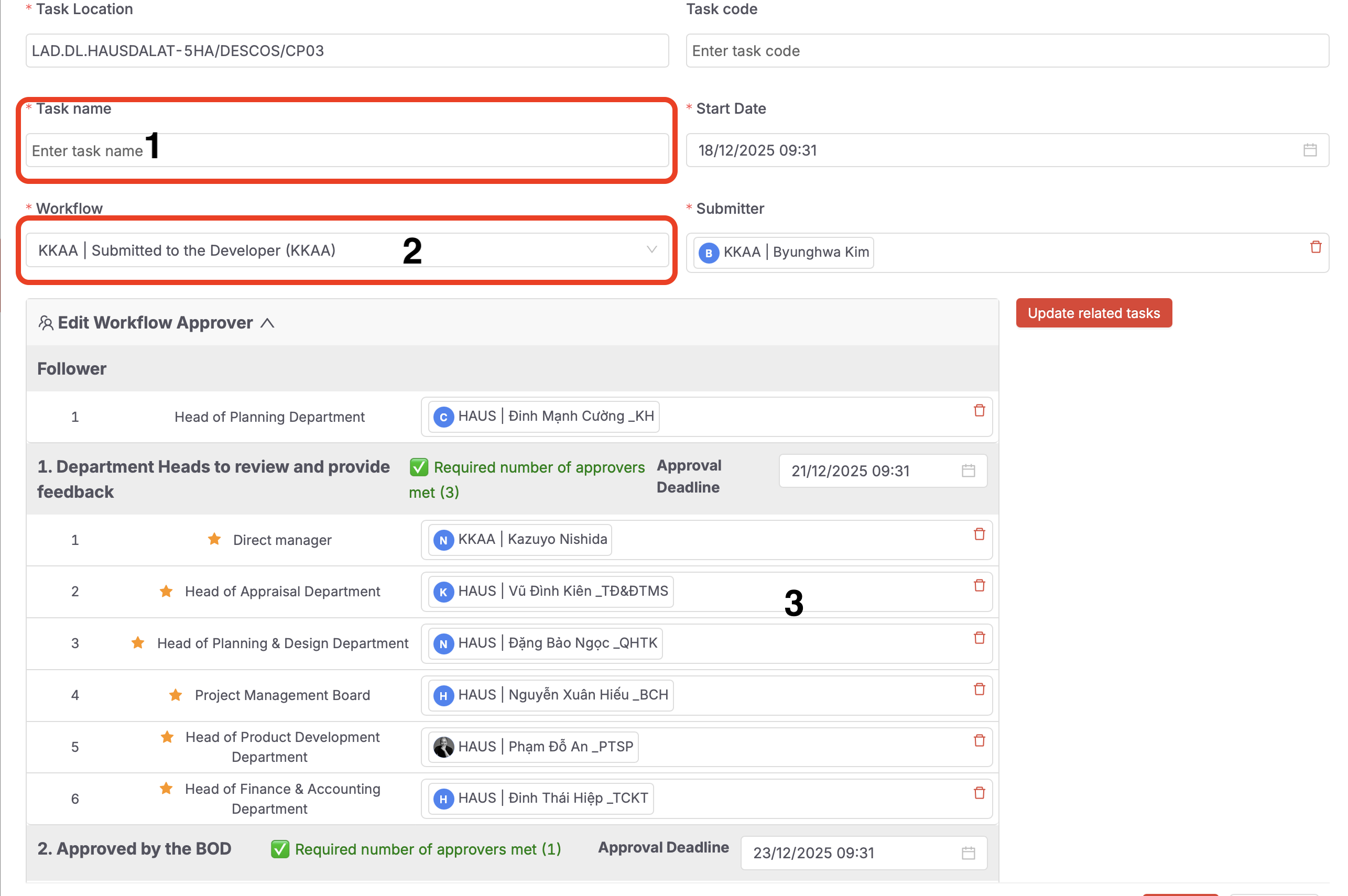
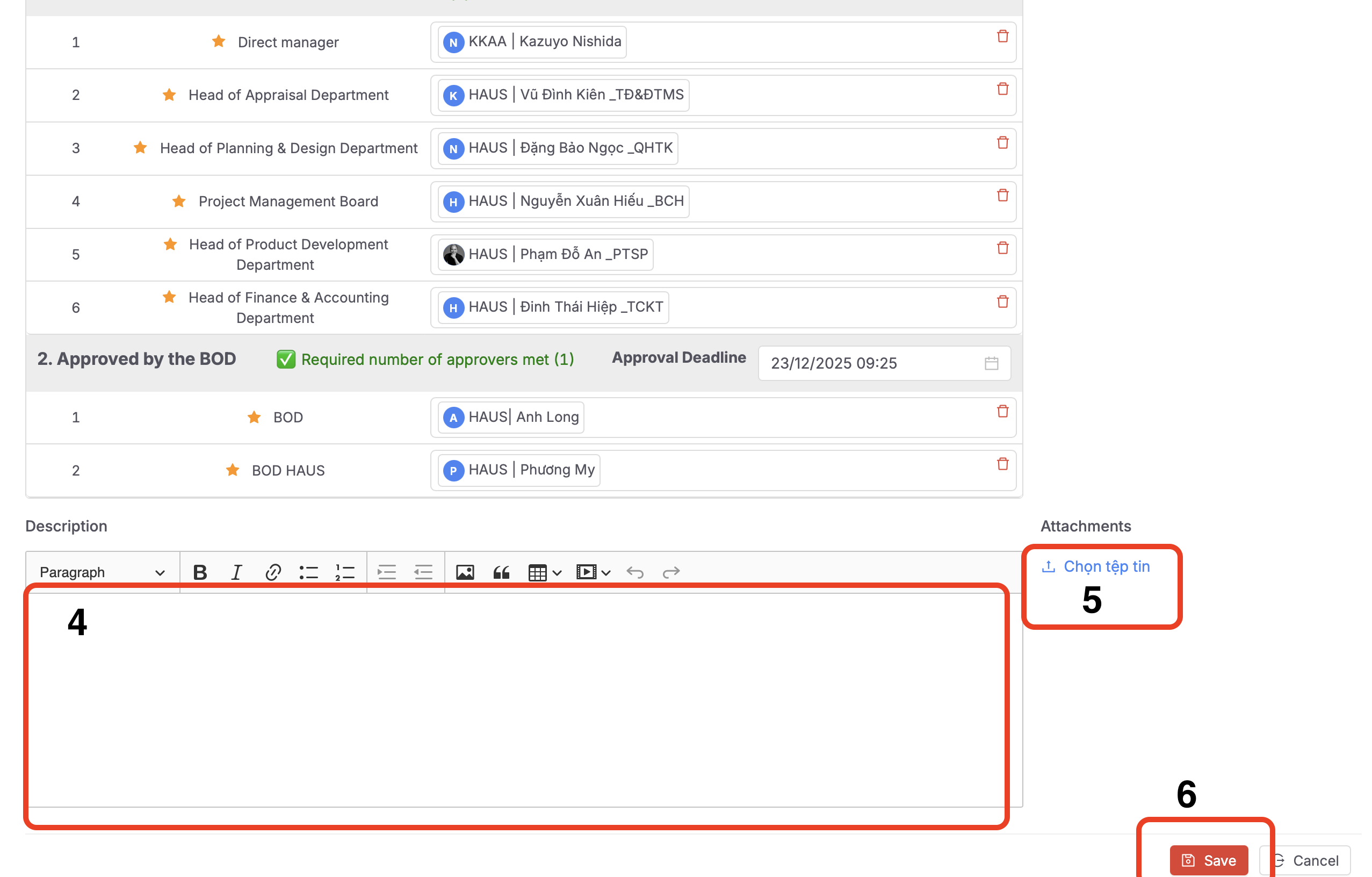
Steps to create a new task:
-
Enter the task title (similar to an email subject).
-
Select the workflow according to the provided instructions.
-
Review the list of participants who will be involved in reviewing and providing feedback.
-
Enter the task details in full (similar to the body of an email).
-
Attach files if you want to include shared documents with the task.
-
Click Save to complete the creation of the new task.
SUBMIT REQUEST TO ARTELIA
A.LINK PROJECT FOLDER DESCRIPTION
https://docs.google.com/spreadsheets/d/16Qv3FgS0Bml4TOU3wmQNrv1YZm1Cb_dABwsnWz7_vJ4/edit?usp=sharing
B.LINK TO INSTALL THE HAUS APP:
https://haus.onelink.me/xlPy/haus
C. HOW TO CREATE AN APPROVAL REQUEST
Open web link https://qlda.hausvietnam.com/login

1. Login with username (email)
2. Password provide by IT
3. Change your language after login.
3. Click Project > HAUS DA LAT or open quick link https://qlda.hausvietnam.com/cong-viec/cong-viec-du-an/LAD.DL.HAUSDALAT-5HA?id=b2e861ec-9f6f-41bb-b9fc-b8b7d60116d8&quyTrinhId=a5e22183-27d6-4029-aa63-9a8325ef3d23
5. Select Folder COMPANY NAME :
-------------------
Create a new Request (TASK)
Steps to create a new task:
-
Enter the task title (similar to an email subject).
-
Select the workflow according to the provided instructions.
-
Review the list of participants who will be involved in reviewing and providing feedback.
-
Enter the task details in full (similar to the body of an email).
-
Attach files if you want to include shared documents with the task.
-
Click Save to complete the creation of the new task.
BRANDING SUBMIT REQUEST TO BOD
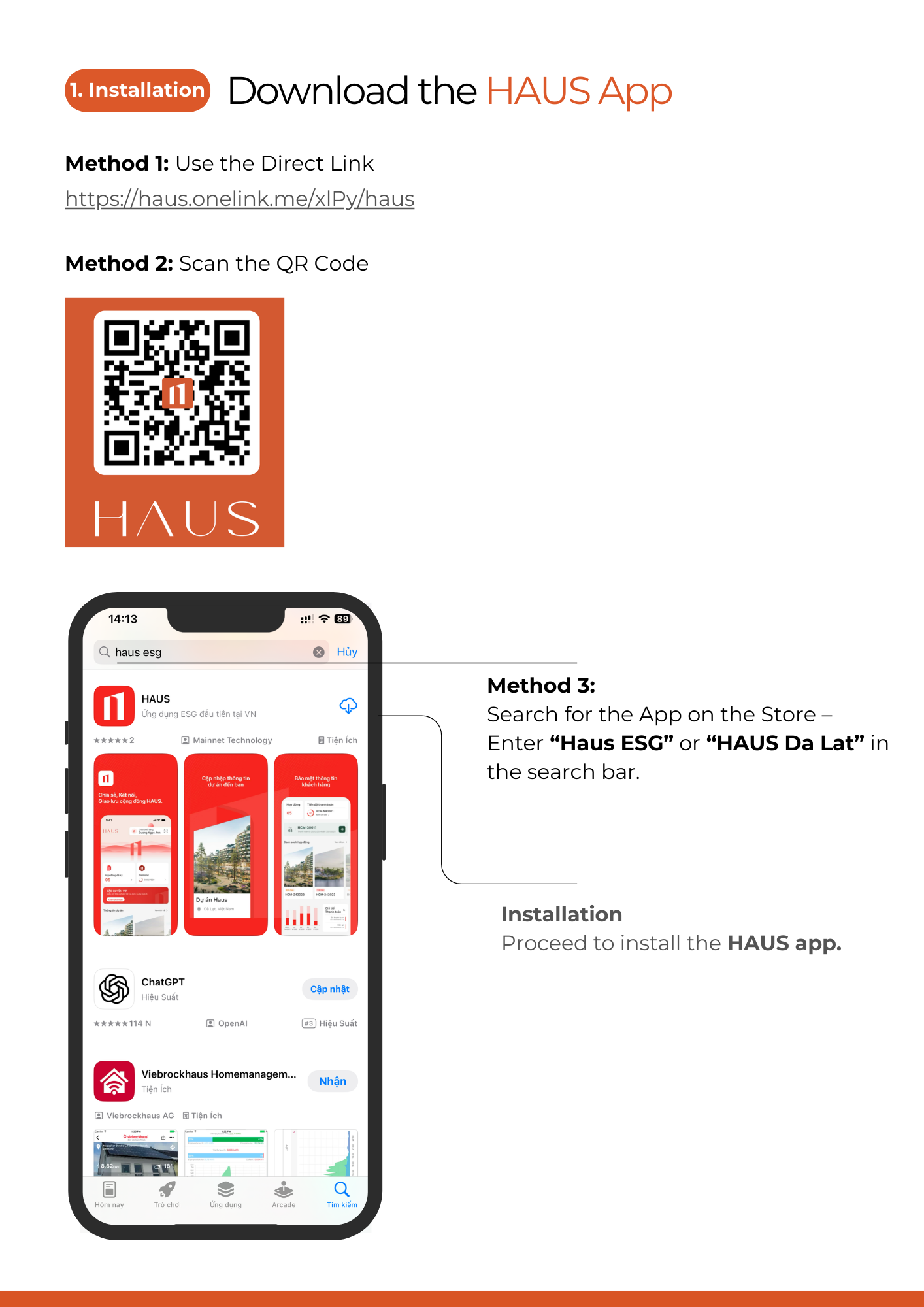
A.LINK TO INSTALL THE HAUS APP:
https://haus.onelink.me/xlPy/haus
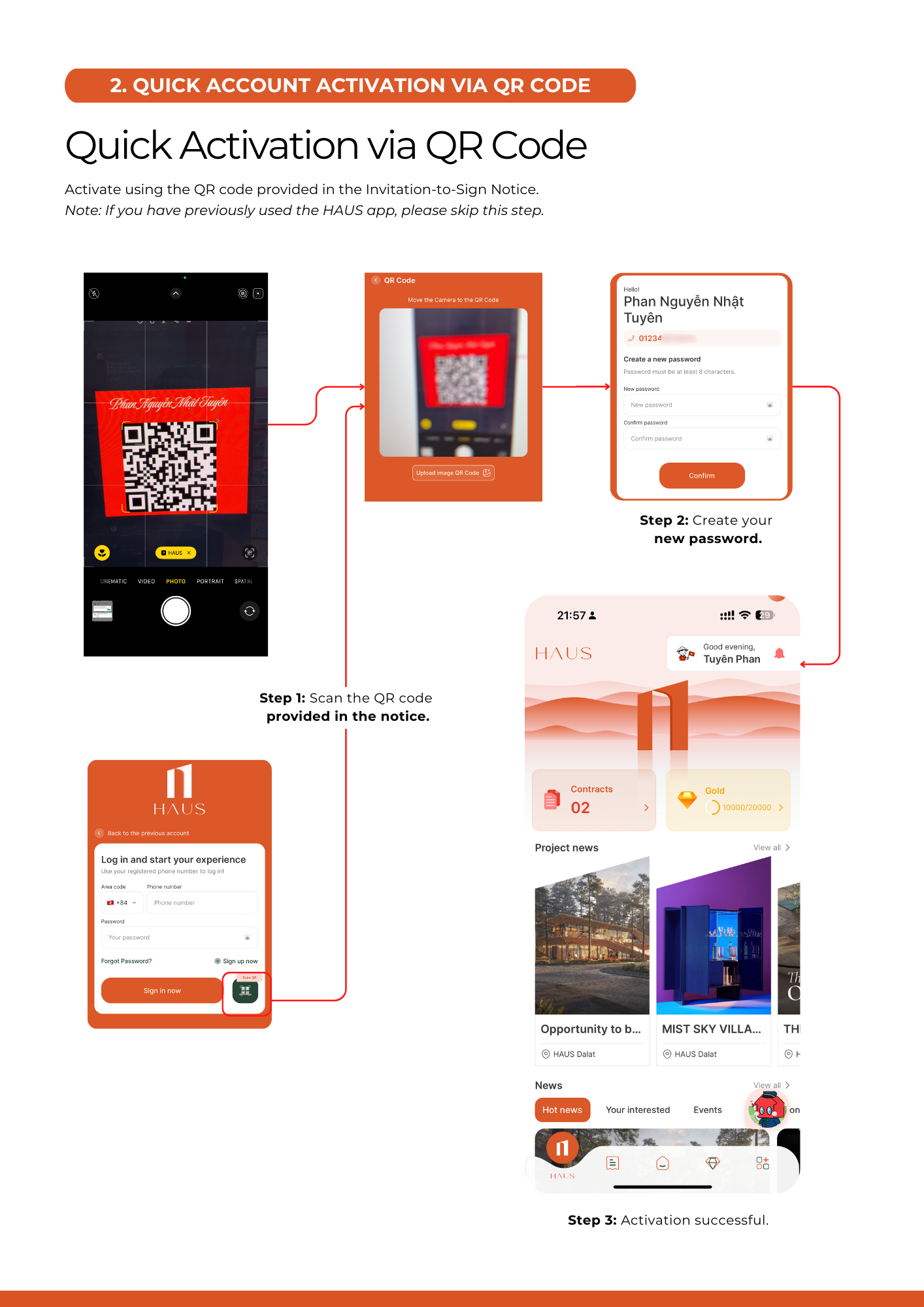
B. HOW TO CREATE AN APPROVAL REQUEST
Open web link https://qlda.hausvietnam.com/login
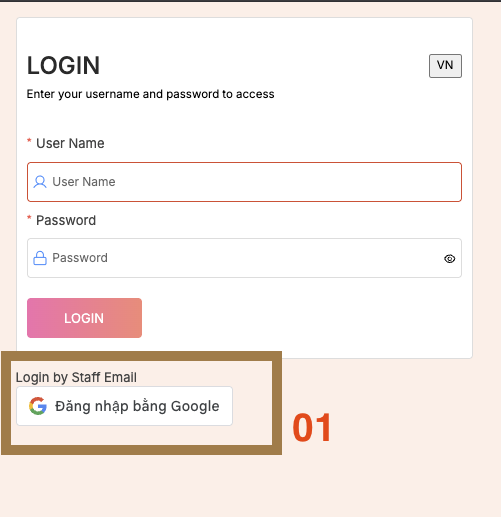
1. Login By Google (nhspartner email)
2. Change your language after login.
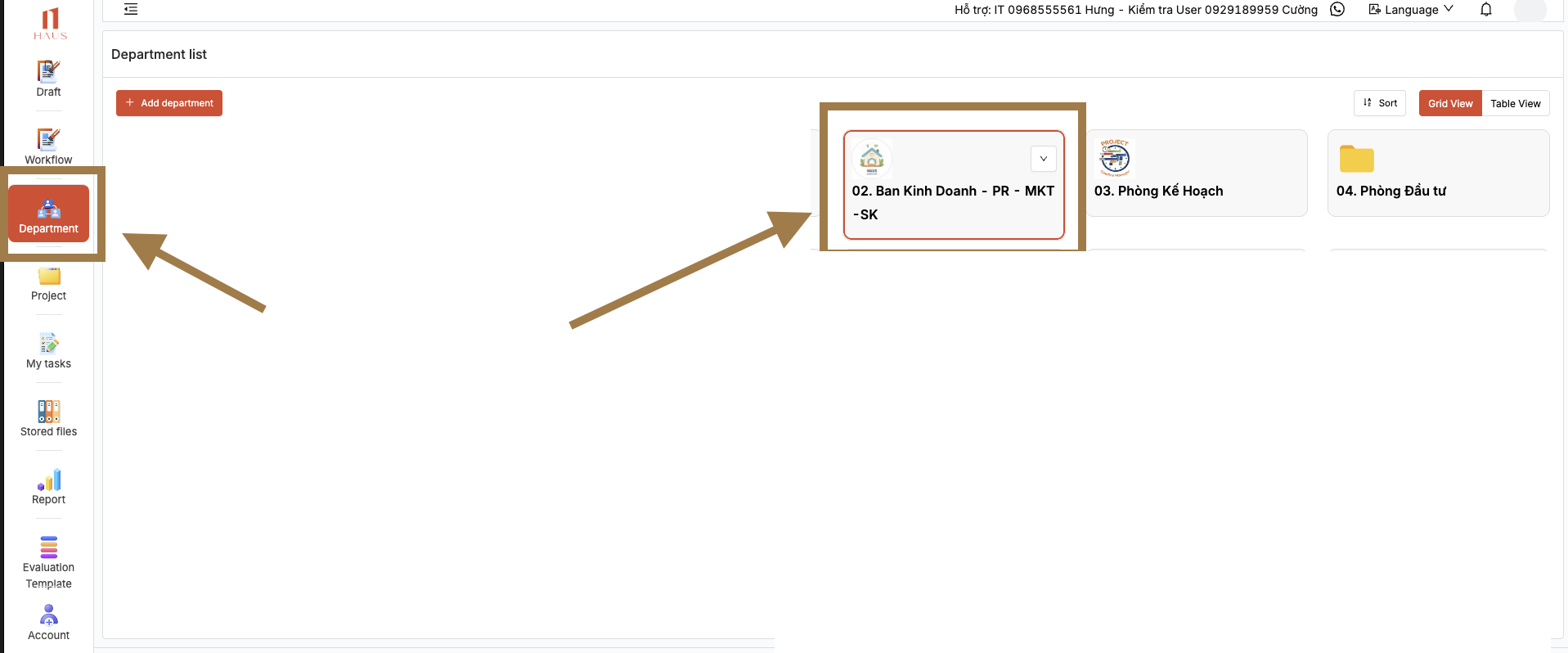
3. Click Department > 02. Ban Kinh Doanh - PR - MKT -SK or open quick link
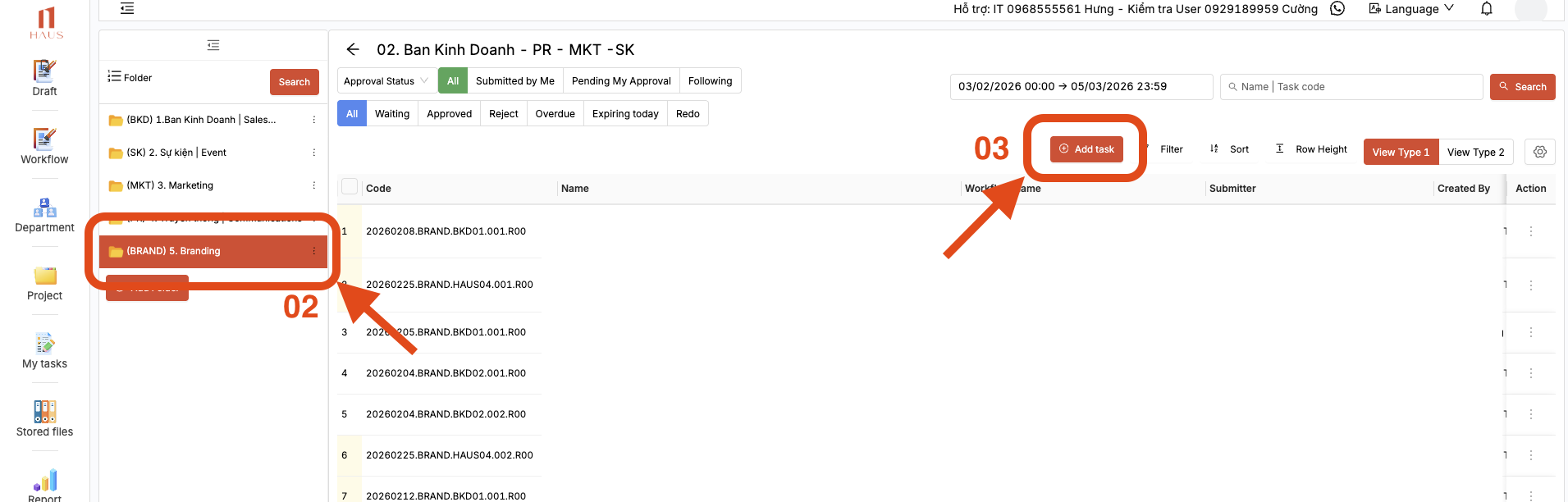
5. Select a folder based on the nature of the task.
05. Branding can be selected as the default option. :
-------------------
Create a new Request (TASK)
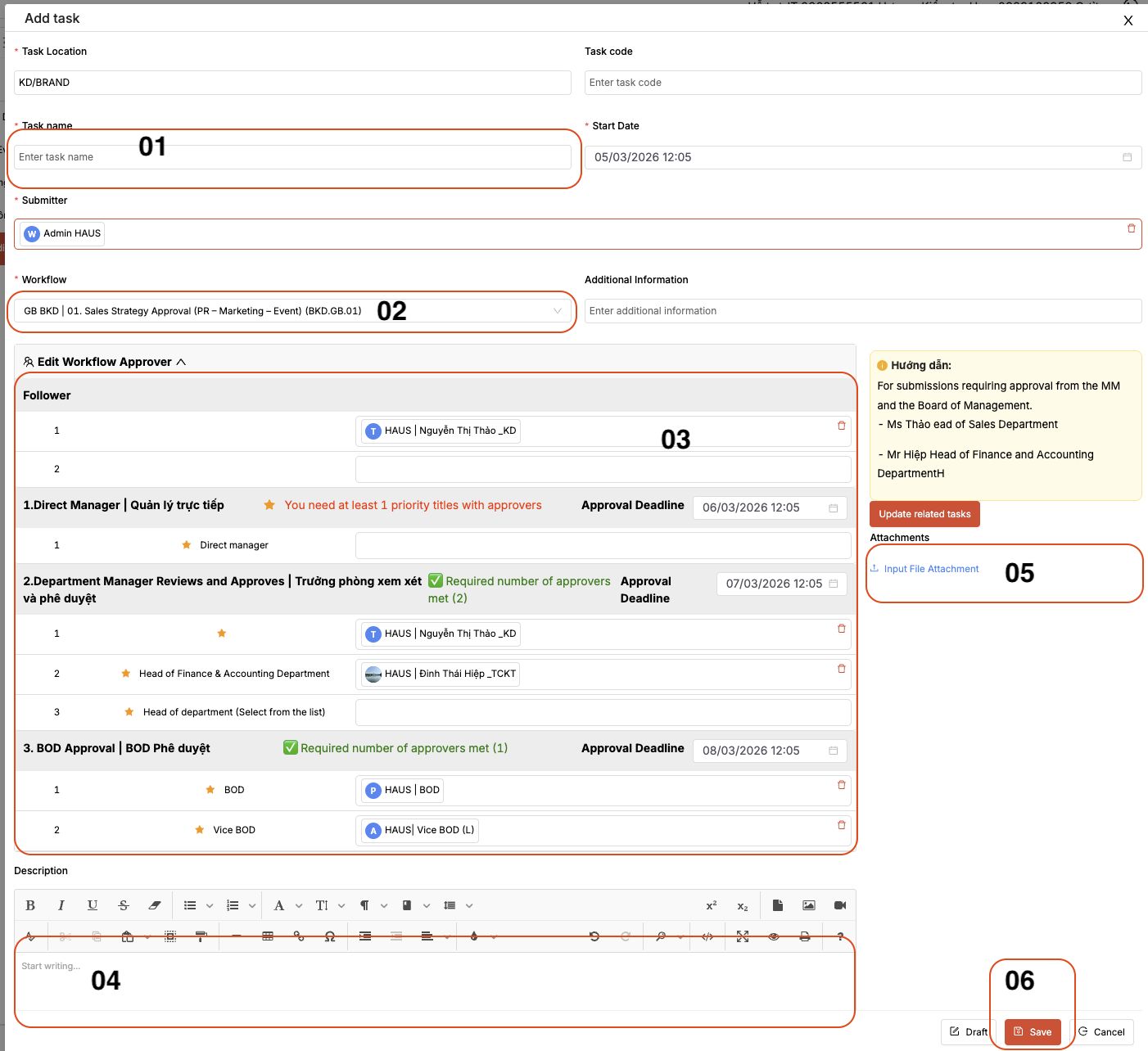
Steps to create a new task:
-
Enter the task title (similar to an email subject).
-
Select the workflow according to the provided instructions.
-
Review the list of participants who will be involved in reviewing and providing feedback.
-
Enter the task details in full (similar to the body of an email).
-
Attach files if you want to include shared documents with the task.
-
Click Save to complete the creation of the new task.